

You need to convert a photo on your iPhone — a HEIC file that will not open on Windows, a PNG that needs to be a JPG for an email attachment, or a WebP image downloaded from a website that no app on your phone will open. You search the App Store and find a dozen image converter apps — but every single one either has a paywall, requires an account, shows intrusive ads, or both.
Here is what most iPhone users do not know: you do not need to download any app at all. The best free image converter for iPhone in 2026 runs directly in Safari — with no download, no signup and no privacy risk.
In this guide we will walk through the most common iPhone image format problems and show you how to solve all of them using SwiftPix — a free browser-based image converter that works perfectly in Safari on any iPhone or iPad.
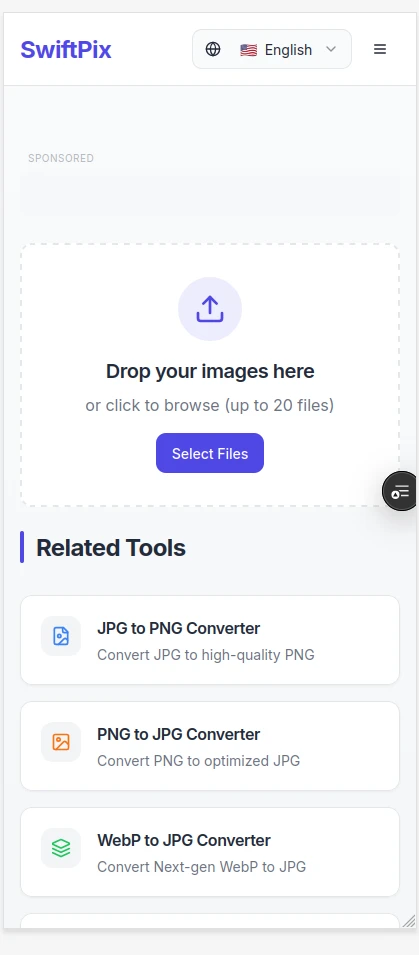
SwiftPix — Best free image converter for iPhone. Works in Safari, no app needed.
Why iPhone Image Converter Apps Are Frustrating
The App Store has no shortage of image converter apps. But spend five minutes with most of them and you will run into the same problems:
In-app purchases: Most free image converter apps on the App Store are free to download but lock their best features behind subscriptions or one-time payments. The truly useful features — batch conversion, format variety, no watermarks — typically require a premium upgrade.
Intrusive ads: Ad-supported free apps interrupt your workflow with full-screen ads between every conversion. Converting ten photos means watching ten ads — a frustrating experience that makes the "free" label feel dishonest.
Account requirements: Several popular converter apps require you to create an account before you can download your converted files. For a simple image format change, creating yet another account with a password to remember is an unnecessary barrier.
Privacy concerns: Many converter apps upload your photos to remote servers for processing — even when used on your own device. For personal photos, passport pictures and sensitive images, this is a significant privacy concern that most app descriptions do not clearly disclose.
Storage clutter: Every app you install takes up storage space on your iPhone. For a task you perform occasionally, installing a dedicated app just to convert an image format is wasteful — especially when a browser-based tool does the same job without taking up any space on your device.
The Better Solution — SwiftPix in Safari
SwiftPix is a free browser-based image converter that works directly in Safari on iPhone and iPad — with no app download, no account, no ads and no uploads to any server.
Here is why SwiftPix is the best free image converter for iPhone in 2026:
No app download required: Open Safari, go to swiftpix.nzuki.com and you are ready to convert. No installation, no storage space used, no App Store account required.
No uploads, no privacy risk: SwiftPix processes all conversions locally in your browser using Safari's built-in processing power. Your photos never leave your iPhone — they are never transmitted to any server or stored anywhere outside your device.
Completely free with no in-app purchases: SwiftPix is built by VelocityAI Solutions as a genuinely free tool — no ads, no paywalls, no premium tiers. Every feature is available to every user for free.
Supports all iPhone photo formats: SwiftPix converts between HEIC, JPG, PNG, WebP and GIF — covering every image format you are likely to encounter on your iPhone.
How to Convert iPhone Photos for Free Using SwiftPix
Step 1: Open Safari on Your iPhone
Open the Safari browser on your iPhone or iPad. Go to swiftpix.nzuki.com. The tool loads instantly — no account, no installation and no signup required.
Step 2: Select Your Photo
Tap the upload area on the SwiftPix page. Safari will prompt you to choose a photo from your iPhone's camera roll or files. Select the photo you want to convert. SwiftPix loads it directly into your browser — it never leaves your device.
Step 3: Choose Your Output Format
Select your target format from the dropdown. For most common conversions on iPhone choose JPG for maximum compatibility with Windows and Android devices, PNG for lossless quality and transparency support, or WebP for smaller file sizes when uploading to websites.
Step 4: Convert and Save to Your Camera Roll
Tap Convert — the conversion happens instantly. Tap Download to save your converted image. On iPhone, tap and hold the downloaded image and select Save to Photos to add it to your camera roll. Your converted photo is now ready to share, email or upload anywhere.
No app. No account. No upload. No ads. Completely free.
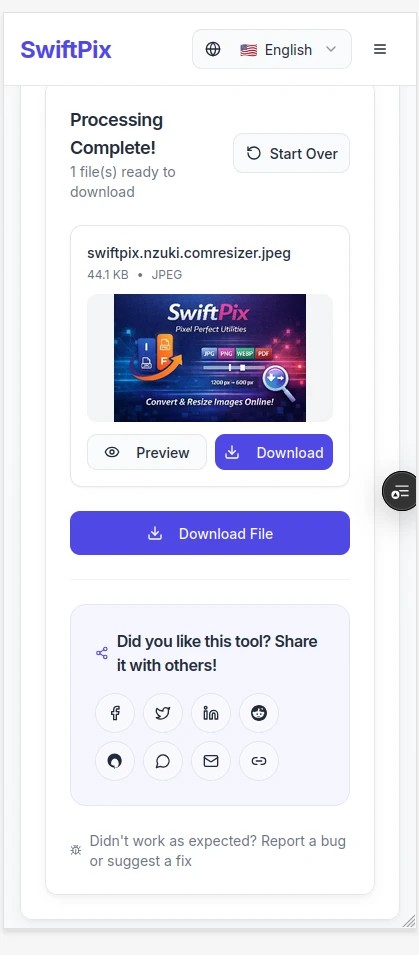
Convert iPhone photos instantly in Safari — download and share in seconds.
Common iPhone Image Problems — Solved
Problem: My iPhone photos will not open on Windows
iPhone cameras save photos in HEIC format by default — a format that Windows does not always support without additional software. The fix is converting HEIC to JPG before sharing. Open SwiftPix in Safari, load your HEIC photo, select JPG as the output format and download. Your photo will now open on any Windows computer without issues. For a full guide see our post on how to convert HEIC to JPG on Windows for free.
Problem: My iPhone photo is too large to send by email or upload to a portal
iPhone photos are high resolution and can be 3MB to 6MB each — too large for many email systems and government portals with file size limits. Open SwiftPix in Safari, load your photo and use the compression option to reduce it to your required size. For portals requiring images under 50KB see our guide on how to compress an image to 50KB free.
Problem: I downloaded a WebP image and cannot open it
Many websites serve images in WebP format. While Safari on iPhone displays WebP images in web pages, some apps and services do not accept WebP files for upload. Open SwiftPix in Safari, load your WebP file and convert it to JPG. Your image will then work universally across all apps and platforms.
Problem: I need a PNG with a transparent background from my iPhone photo
JPG and HEIC do not support transparent backgrounds. If you need a transparent version of an image for design work — for example to remove the background from a product photo or logo — convert to PNG first using SwiftPix, then use a background removal tool to create the transparent version.
Problem: My photos need to be a specific size for Instagram
Instagram performs best with images at specific pixel dimensions. Use SwiftPix to resize your iPhone photos to the exact Instagram dimensions before uploading. For the full guide see our post on how to resize images for Instagram for free.
Frequently Asked Questions
Does SwiftPix work on older iPhones?
Yes. SwiftPix works in Safari on any iPhone running iOS 14 or later — covering the vast majority of iPhones currently in use. It also works on iPad with iPadOS 14 or later.
Can I convert multiple iPhone photos at once with SwiftPix?
Yes. SwiftPix supports batch conversion on iPhone — select multiple photos from your camera roll and convert them all to your chosen format in a single operation.
Is SwiftPix safe to use for personal photos on iPhone?
Yes — SwiftPix is one of the safest options for personal photos because all processing happens locally in your Safari browser. Your photos never leave your iPhone. No server ever sees your images — making it ideal for personal photos, passport pictures and any sensitive images you need to convert privately.
Do I need to change my iPhone camera settings to avoid HEIC files?
You can change your iPhone camera to shoot in JPG format instead of HEIC by going to Settings → Camera → Formats → Most Compatible. However HEIC produces smaller file sizes at better quality — so many users prefer to keep shooting in HEIC and convert only when needed using SwiftPix.
Is SwiftPix completely free on iPhone?
Yes — completely free. No in-app purchases, no subscription, no ads and no account required. SwiftPix is built and maintained by VelocityAI Solutions as a free tool for everyone.
Conclusion
You do not need to download an image converter app on your iPhone. You do not need to pay for a premium subscription, watch ads or create another account. SwiftPix gives you a completely free, completely private image converter that works directly in Safari on any iPhone — converting HEIC, JPG, PNG and WebP instantly with no app, no upload and no fees.
Bookmark swiftpix.nzuki.com in Safari today. The next time you need to convert an iPhone photo, it will take you thirty seconds.
Also check our other free browser-based image tools: reduce image size without losing quality, convert WebP to JPG free, convert JPG to PNG free and convert PNG to WebP free.
🚀 Need a Professional Website or Mobile App for Your Business?
VelocityAI Solutions builds AI-powered websites, mobile apps and business automation tools for businesses in Nairobi and beyond — at startup-friendly prices.
✅ Web Development | ✅ Mobile Apps | ✅ Business Automation | ✅ Cybersecurity
🌐 velocity-ai-solutions.nzuki.com
💬 WhatsApp: +254 735 644 100
📩 info.nzuki@gmail.com


0 Comments