

Your PDF is too large to attach to an email. The online portal is rejecting it because it exceeds the file size limit. Your client's inbox is bouncing it back. You need to reduce the file size — fast, free and without uploading your document to a stranger's server.
PDF compression is one of the most searched document tasks online — and yet most free tools either require an account, upload your file to remote servers, show you ads between every step, or limit how many files you can compress per day on the free plan.
In this guide we will explain why PDFs get so large, how compression works, and how to compress any PDF for free — instantly in your browser, with no upload and no signup — using PDFStream.
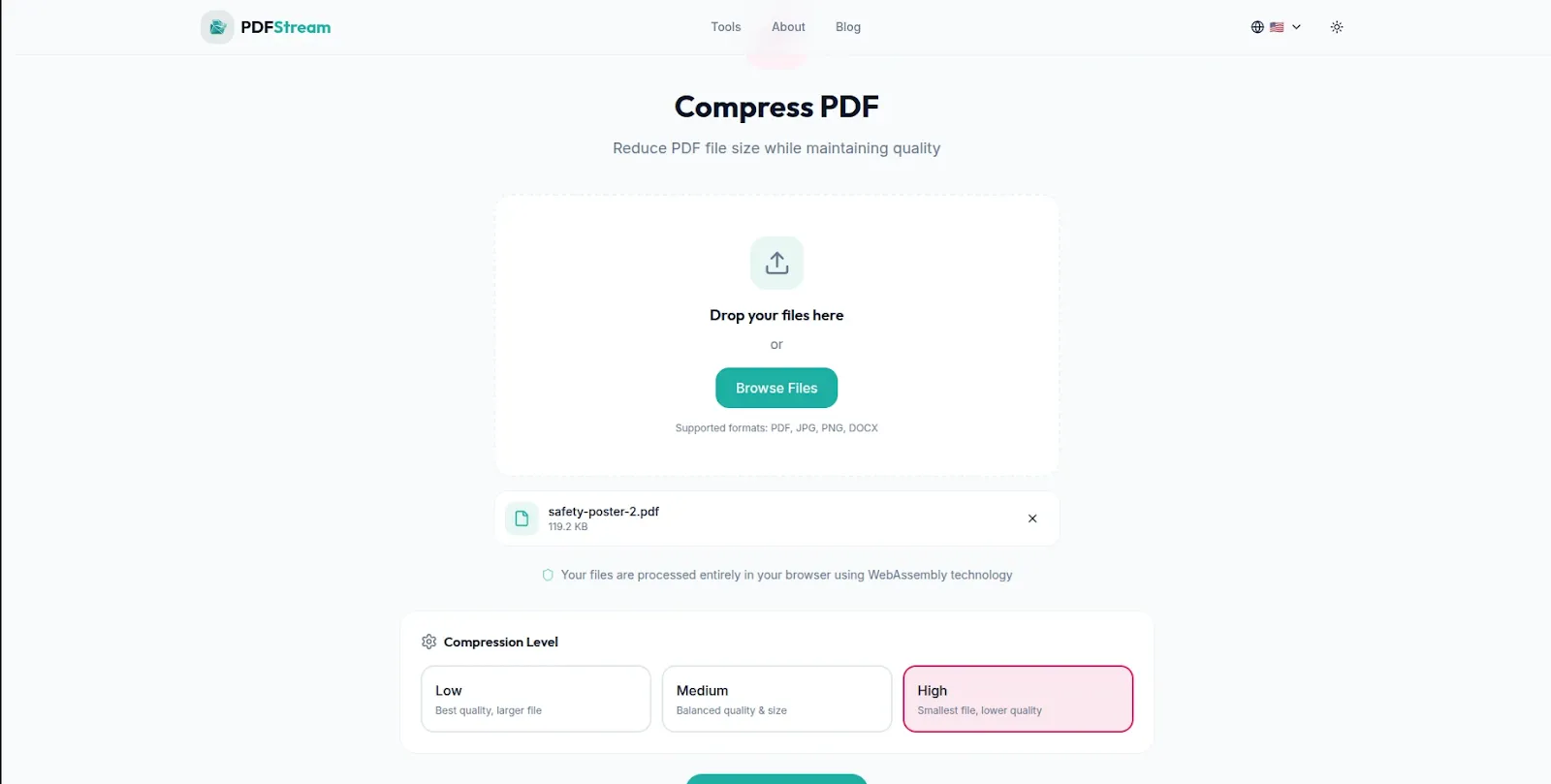
PDFStream — Compress PDF files free in your browser. No uploads, no signup required.
How to Compress a PDF File for Free Using PDFStream
PDFStream is a free browser-based PDF toolkit that compresses PDF files entirely in your browser — with no file uploads, no account and no fees. Here is exactly how to use it:
Step 1: Open PDFStream in Your Browser
Go to pdfstream.nzuki.com in any modern browser — Chrome, Edge, Firefox or Brave on desktop, tablet or mobile. No account, no installation and no signup required.
Step 2: Load Your PDF
Click the upload area or drag and drop your PDF file onto the page. Your file loads directly into your browser memory — it is never transmitted to any server at any point in the process.
Step 3: Select Your Compression Level
Choose your compression level based on your needs. Light compression preserves maximum quality with a modest file size reduction — ideal for documents where visual quality is critical, like portfolios and design presentations. Medium compression balances quality and file size — ideal for most business documents, reports and proposals. Strong compression delivers the smallest possible file size with some quality reduction — ideal for archiving or when file size limits are strict.
Step 4: Compress and Download
Click Compress — the operation happens instantly in your browser. Review the resulting file size and download your compressed PDF. It is ready to email, upload or share immediately.
No upload. No signup. No ads. No daily limits. Completely free.
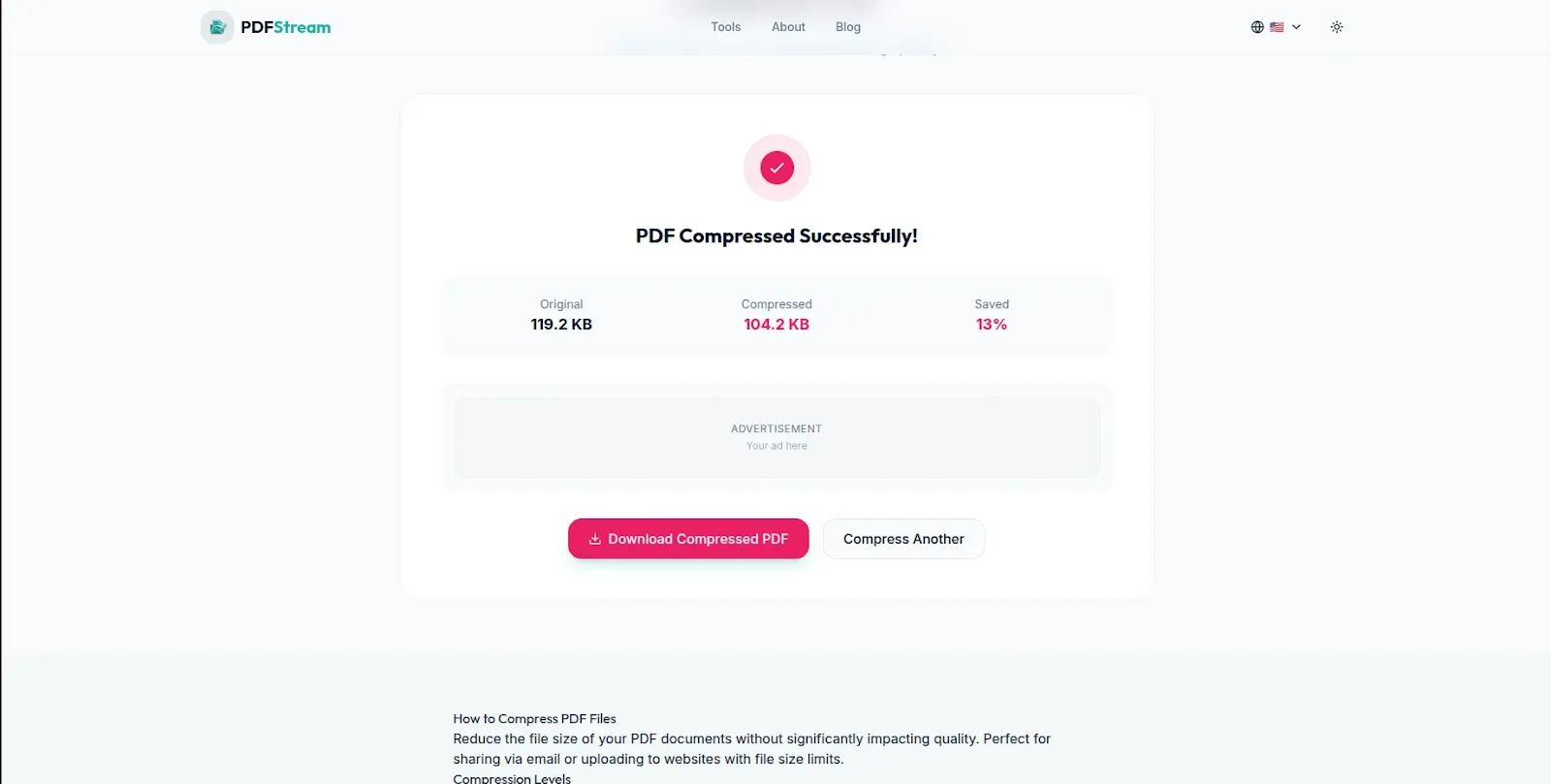
PDF compressed instantly — smaller file size, ready to email or upload immediately.
Why PDF Files Get So Large
Understanding why PDFs become oversized helps you choose the right compression approach. The most common causes of large PDF file sizes are:
High-resolution embedded images: The single biggest contributor to large PDF sizes is images. When you include photos, screenshots or graphics in a PDF, they are often embedded at full resolution — far higher than necessary for screen viewing or standard printing. A single high-resolution photo can add 3MB to 5MB to a PDF file size on its own.
Unoptimized scanned documents: Scanned PDFs are essentially collections of images rather than text. A scanned document at 300 DPI or above produces very large files — a 10-page scanned report can easily exceed 20MB. Compression significantly reduces scanned PDF sizes by reducing image resolution to a level still sharp for viewing.
Embedded fonts: PDFs can embed full font files to ensure consistent display across all devices. Some fonts — particularly custom or complex ones — add significant file size. PDF compression tools can subset fonts, embedding only the characters actually used in the document rather than the entire font file.
Redundant metadata and hidden layers: PDFs accumulate metadata, revision history, comments, annotations and hidden layers over time — particularly in documents that have been edited multiple times. This invisible data adds file size without any visible benefit. Compression removes this redundant data cleanly.
Uncompressed content streams: The underlying data streams in a PDF that define page layout, vector graphics and text positioning can themselves be compressed further without any visible quality loss. Good PDF compression tools apply additional compression to these content streams as part of the optimization process.
When You Need to Compress a PDF — Common Use Cases
Email attachments: Most email services have a 10MB to 25MB attachment limit — and many corporate email systems have even stricter limits. A report with embedded images or a portfolio PDF can easily exceed these limits. Compressing to under 5MB ensures reliable delivery to any email system.
Government and institutional portals: Online portals for visa applications, university submissions, job applications and tender submissions almost always have strict file size limits — commonly 2MB, 5MB or 10MB per document. Compressing your PDF to meet these limits is essential for successful submissions.
WhatsApp and messaging apps: WhatsApp allows PDF attachments up to 100MB but compresses them aggressively, sometimes making them difficult to read. Sending a well-compressed PDF from the start ensures your recipient receives a clean, readable document.
Cloud storage and sharing: Reducing PDF file sizes before uploading to Google Drive, Dropbox or OneDrive reduces your storage usage and makes files faster to share with collaborators — particularly useful when sharing with people on slow internet connections.
Website uploads: PDFs uploaded to websites — product brochures, menus, price lists, downloadable guides — should be compressed to load quickly for website visitors. Large PDFs slow down page loading and frustrate users, leading to lower engagement and higher bounce rates.
How Much Can You Reduce a PDF File Size?
The compression results vary significantly depending on the content of your PDF:
Image-heavy PDFs — portfolios, reports with charts and photos, scanned documents — typically see the largest reductions. A 20MB scanned document can often be compressed to 2MB to 4MB with medium compression — an 80% to 90% reduction with no visible quality loss for screen viewing.
Text-heavy PDFs — contracts, reports, academic papers — are already relatively small and see more modest reductions. A 2MB text document might compress to 1.2MB to 1.5MB — a 25% to 40% reduction.
Mixed content PDFs — business proposals, presentations, brochures — fall in between, typically seeing 40% to 60% file size reduction with medium compression at good visual quality.
PDFStream vs Other Free PDF Compressors
The key difference between PDFStream and most other free PDF compressors is where your file is processed. The majority of free PDF compression tools — including the most popular ones — upload your document to a remote server, compress it there, and send the result back to you for download.
For casual documents this may be acceptable. But for professional, legal, financial and personal documents — contracts, payslips, tax records, medical files, business proposals — uploading to an unknown server introduces privacy risks that most users never consider at the moment they are rushing to compress a file.
PDFStream processes compression locally in your browser. Your PDF never leaves your device. This makes it the safest free PDF compressor for sensitive documents — and the only browser-based PDF toolkit that covers compression, merging, splitting, page removal and PDF to Word conversion all in one place.
Frequently Asked Questions
Is PDFStream free for PDF compression?
Yes — completely free. No hidden fees, no daily limits, no account required and no ads. PDFStream is built and maintained by VelocityAI Solutions as a free tool for everyone.
Does compressing a PDF reduce its quality?
It depends on your compression level. Light compression produces no visible quality reduction. Medium compression delivers excellent quality for screen viewing and standard printing with a significant file size reduction. Strong compression creates the smallest possible files with some visible quality reduction — best used when file size limits are strict and print quality is not the priority.
Does PDFStream upload my PDF to a server?
No — PDFStream processes all compression locally in your browser. Your PDF never leaves your device. No server ever sees your document content — making it the safest free PDF compressor for sensitive documents.
Can I compress a password-protected PDF?
Password-protected PDFs require the password to be entered before compression can be applied. If you have the document password, enter it when prompted and PDFStream will compress the unlocked document normally.
What other PDF tools does PDFStream offer?
PDFStream is a complete browser-based PDF toolkit — compress, merge, split, remove pages and convert PDF to Word, all free, all processed locally with no uploads. See our guides on how to merge PDF files free and how to split a PDF into separate pages free.
Does PDFStream work on mobile for PDF compression?
Yes. PDFStream works fully on Android and iOS browsers without any app installation. Compress PDF files directly on your smartphone or tablet before emailing or uploading.
Conclusion
Compressing a PDF should be fast, free and private. PDFStream delivers all three — a completely free PDF compressor that works instantly in your browser with no uploads, no account and no privacy risk. Your documents stay entirely on your device from start to finish.
Whether you are reducing a PDF for an email attachment, meeting a portal file size limit or archiving documents more efficiently — PDFStream handles it privately and for free.
Go to pdfstream.nzuki.com and compress your PDF in under sixty seconds.
Also check our other free browser-based PDF tools: merge PDF files free, split PDF into separate pages, convert PDF to Word free and is it safe to upload PDFs online?
🚀 Need a Professional Website or Custom Tool for Your Business?
VelocityAI Solutions builds AI-powered websites, mobile apps and business automation tools for businesses in Nairobi and beyond — at startup-friendly prices.
✅ Web Development | ✅ Mobile Apps | ✅ Business Automation | ✅ Cybersecurity
🌐 velocity-ai-solutions.nzuki.com
💬 WhatsApp: +254 735 644 100
📩 info.nzuki@gmail.com


0 Comments