

You have a JPG image — a logo, a product photo, a screenshot — and you need it in PNG format. Maybe you need a transparent background for a design project. Maybe you need lossless quality for printing. Maybe the platform you are uploading to only accepts PNG files.
Whatever the reason, converting JPG to PNG should take thirty seconds — not five minutes of account creation, file uploading and waiting for a server to process your image.
In this guide we will explain exactly when and why you need PNG instead of JPG, and how to convert any JPG to PNG for free — instantly, in your browser, with no upload and no signup — using SwiftPix.
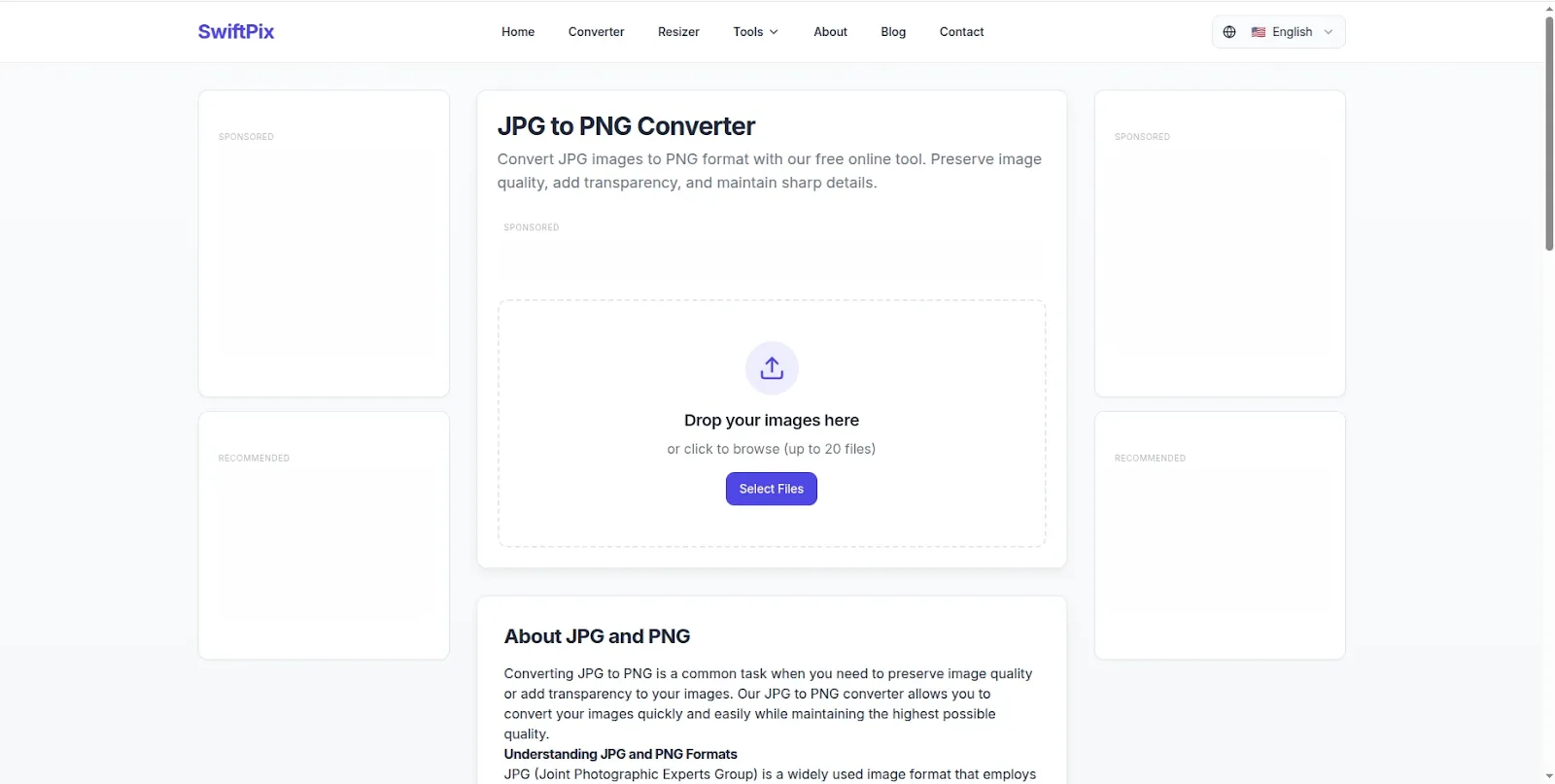
SwiftPix — Convert JPG to PNG free in your browser. No uploads, no signup required.
JPG vs PNG — What Is the Difference and When Does It Matter?
JPG and PNG are both widely used image formats but they work differently and serve different purposes. Understanding the difference helps you choose the right format every time.
JPG (JPEG) — Best for Photos
JPG uses lossy compression — it reduces file size by permanently discarding some image data. The quality reduction is usually invisible for photographs, which is why JPG became the standard format for digital camera images and web photos. JPG produces small file sizes that load quickly but does not support transparent backgrounds, and repeated saving degrades quality over time.
PNG — Best for Graphics and Transparency
PNG uses lossless compression — it reduces file size without discarding any image data. This means PNG files are larger than JPG but maintain perfect quality regardless of how many times you save them. Most importantly, PNG supports transparent backgrounds — making it the essential format for logos, icons, UI elements and any image that needs to sit on a coloured or patterned background without a white box around it.
When You Need to Convert JPG to PNG
The most common reasons to convert from JPG to PNG include needing a transparent background for a logo or graphic, uploading to a platform that only accepts PNG format, preparing images for web or app design where lossless quality is required, creating graphics with text where JPG compression would make edges look blurry, and archiving images where repeated editing will be needed without quality loss.
Why Most Free JPG to PNG Converters Require an Upload
Most free online image converters follow the same workflow: you upload your image to their server, their server converts the file, and you download the result. For a casual photo this seems harmless enough.
But consider what people commonly need to convert to PNG: business logos, product images, document screenshots, personal photos, design assets and sensitive graphics. Uploading these to a random online server means your images are transmitted across the internet and stored on infrastructure you do not control — sometimes for hours, sometimes longer.
Additionally, many free tools require account creation before you can download your converted file — turning a thirty-second task into a five-minute registration process.
The better approach is using a browser-based converter that processes your image locally on your own device — with no uploads, no servers and no account required.
How to Convert JPG to PNG for Free Using SwiftPix
SwiftPix is a free browser-based image converter that converts JPG to PNG — and dozens of other format combinations — entirely in your browser. Your files never leave your device. Here is how to use it:
Step 1: Open SwiftPix in Your Browser
Go to swiftpix.nzuki.com in any modern browser — Chrome, Edge, Firefox or Brave on desktop or mobile. No account, no installation and no signup required.
Step 2: Upload Your JPG File
Click the upload area or drag and drop your JPG file onto the page. SwiftPix supports JPG, PNG, WebP, HEIC and GIF formats for both input and output. Your file loads directly into your browser memory — it never leaves your device.
Step 3: Select PNG as Your Output Format
From the format dropdown, select PNG as your target format. SwiftPix will apply lossless conversion — your image quality will be preserved exactly as it appears in the original JPG file.
Step 4: Convert and Download
Click Convert — the operation happens instantly in your browser. Download your PNG file and it is ready to use immediately. No waiting, no email confirmation and no account required.
No upload. No signup. No privacy risk. Completely free.

JPG converted to PNG instantly — lossless quality, transparent background support.
When Should You Use PNG Instead of JPG?
Knowing when to use PNG helps you make the right format choice from the start — reducing the need for conversion later. Here are the most important use cases for PNG format:
Logos and brand assets: Logos almost always need transparent backgrounds so they can sit cleanly on any coloured surface. JPG does not support transparency — it fills the background with white. PNG is the correct format for all logo files used in digital contexts.
Screenshots and screen recordings: PNG is the ideal format for screenshots because it preserves sharp edges and text with lossless compression. JPG compression creates visible blurriness around text and interface elements — making screenshots look unprofessional, especially when shared in presentations or documentation.
Graphics with text: Any image that combines a visual with text — infographics, social media graphics, slide thumbnails, quote images — should be saved as PNG. JPG compression creates compression artifacts around high-contrast edges like text, making the result look lower quality than the original.
Images for further editing: If you are going to edit an image multiple times, PNG preserves quality across every save. JPG loses a small amount of quality every time you save it — meaning repeated editing sessions gradually degrade the image.
Web graphics and UI elements: Buttons, icons, dividers, badges and other interface elements that need to sit on different backgrounds require PNG transparency support. JPG white backgrounds create a jarring box effect on coloured or gradient website backgrounds.
Does Converting JPG to PNG Improve Image Quality?
This is one of the most common questions about JPG to PNG conversion — and the answer is nuanced.
Converting a JPG to PNG does not restore quality that was already lost when the original JPG was compressed. If your JPG has compression artifacts — visible blurriness, colour banding or blocky areas — those will remain in the PNG version. PNG lossless compression preserves whatever quality the image currently has, but it cannot recover data that JPG compression already discarded.
What PNG conversion does give you is a format that will not lose any further quality with repeated saving and editing. If you are going to edit your image after conversion, starting from PNG means you will not accumulate additional quality loss with each save — unlike JPG which loses a small amount of data every time it is saved.
In summary: converting JPG to PNG does not make a low-quality image high quality. But it does prevent further quality degradation — making it the right choice whenever you plan to edit, modify or repeatedly save the image.
Frequently Asked Questions
Is converting JPG to PNG free with SwiftPix?
Yes — completely free. No hidden fees, no daily limits and no account required. SwiftPix is built and maintained by VelocityAI Solutions as a free tool for everyone.
Will my JPG image have a transparent background after converting to PNG?
Not automatically — JPG files do not contain transparency data, so converting to PNG will preserve the original background colour of your JPG. To create a transparent background you would need to use an image editor to remove the background after conversion. However the PNG format will support transparency once the background is removed — unlike JPG which cannot hold transparent areas at all.
Can I convert multiple JPG files to PNG at once?
Yes. SwiftPix supports batch conversion — drag and drop multiple JPG files simultaneously and convert them all to PNG in a single operation. This saves significant time when converting a folder of images for a design project or website.
Does SwiftPix upload my JPG files to a server?
No — SwiftPix processes all conversions locally in your browser. Your JPG files never leave your device. This is a significant privacy advantage over online converters that upload your images to remote servers for processing.
What is the difference between JPG and JPEG?
JPG and JPEG are the same format — JPEG is the full name (Joint Photographic Experts Group) and JPG is the shortened file extension used on Windows systems that originally limited extensions to three characters. Both refer to exactly the same image compression standard.
Does SwiftPix work on mobile for JPG to PNG conversion?
Yes. SwiftPix works fully on Android and iOS browsers without any app installation. You can convert JPG to PNG directly on your smartphone — useful for quickly preparing images for apps and platforms that require PNG format.
Conclusion
Converting JPG to PNG is a simple task that should take seconds — not minutes of registration and file uploading. SwiftPix keeps it simple: open the tool, load your JPG, select PNG and download. No account, no upload, no privacy risk and completely free.
Whether you need PNG for transparency support, lossless quality, platform compatibility or design work — SwiftPix converts your JPG instantly in your browser and keeps your files completely private on your device.
Go to swiftpix.nzuki.com and convert your JPG to PNG in under thirty seconds.
Also check our other free browser-based image tools: convert HEIC to JPG on Windows, convert PNG to WebP free, compress images to 50KB and resize images for Instagram.
🚀 Need a Professional Website or Custom Tool for Your Business?
VelocityAI Solutions builds AI-powered websites, mobile apps and business automation tools for businesses in Nairobi and beyond — at startup-friendly prices.
✅ Web Development | ✅ Mobile Apps | ✅ Business Automation | ✅ Cybersecurity
🌐 velocity-ai-solutions.nzuki.com
💬 WhatsApp: +254 735 644 100
📩 info.nzuki@gmail.com


0 Comments