

You take a great photo, open Instagram, and suddenly it is cropped in all the wrong places. Or you upload an image only to find it looks blurry, stretched or pixelated on your followers' screens. Sound familiar?
The problem is almost always the same — your image is not the right size for Instagram. Every format on Instagram has specific pixel dimensions, and uploading the wrong size means Instagram automatically crops or compresses your image — often ruining it in the process.
In this guide we will cover the exact Instagram image sizes you need in 2026, why they matter, and how to resize your images for free without uploading them to any external server — using SwiftPix, a completely free browser-based image resizer.
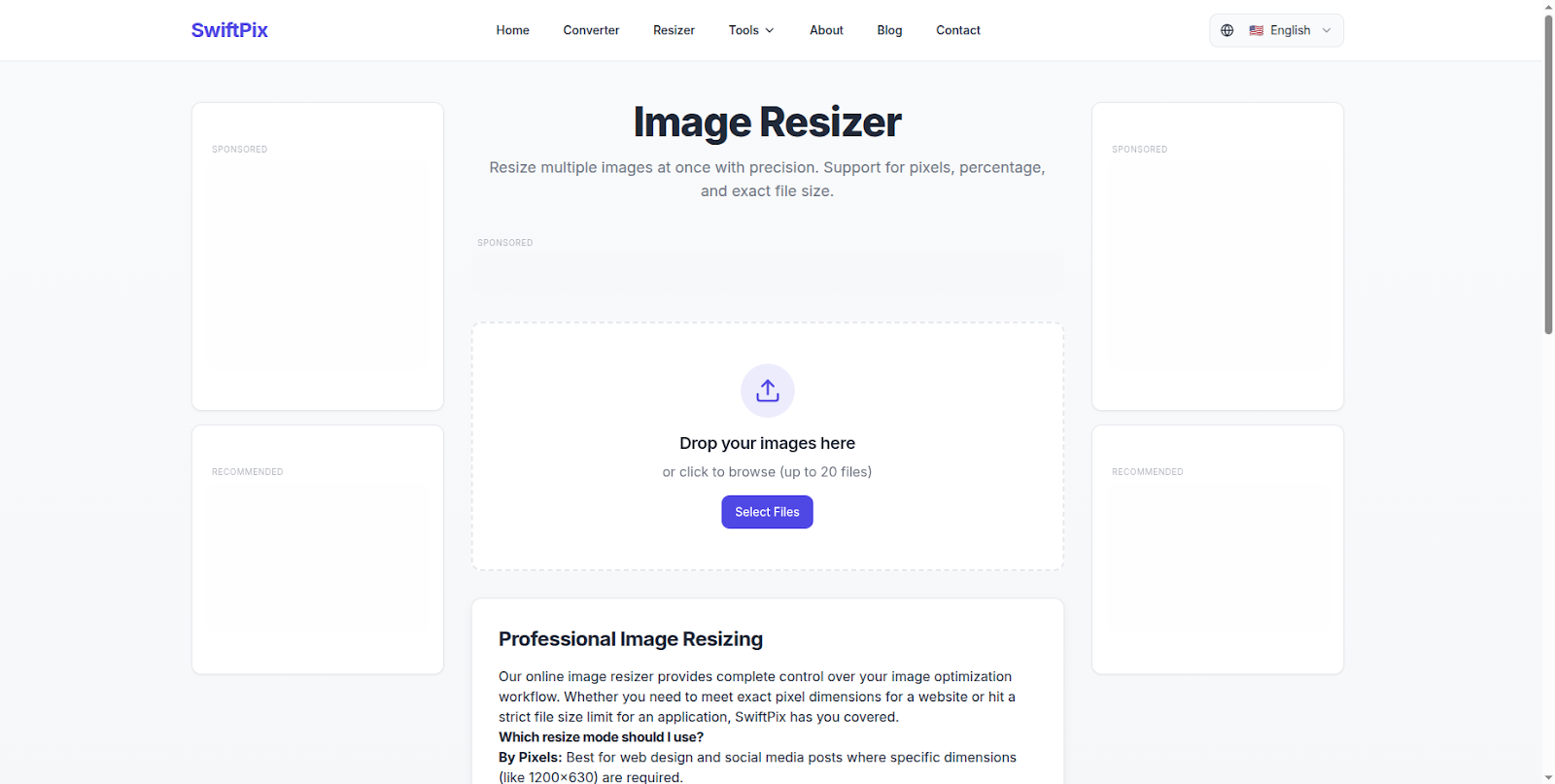
SwiftPix — Free browser-based image resizer. No uploads, no signup required.
Why Instagram Image Size Matters
Instagram was built for mobile — and mobile screens are unforgiving when it comes to image dimensions. When you upload an image that does not match Instagram's required dimensions, one of three things happens:
Instagram crops your image — cutting off parts of your photo you wanted to include. This is the most common problem for photographers and business owners who rely on precise framing.
Instagram compresses your image — reducing quality to fit file size limits. This results in blurry, pixelated images that look unprofessional on your profile grid.
Instagram stretches your image — distorting your photo to fit an incompatible aspect ratio, making people and objects look unnaturally wide or tall.
The solution is simple: resize your image to the correct dimensions before you upload it to Instagram.
Instagram Image Sizes in 2026 — Complete Guide
Here are the exact pixel dimensions for every Instagram format in 2026:
Instagram Feed Posts
Square post: 1080 x 1080 pixels — aspect ratio 1:1. This is the classic Instagram format and the safest choice for any type of content since it displays consistently across all devices.
Portrait post: 1080 x 1350 pixels — aspect ratio 4:5. This is actually the best format for feed posts because it takes up more vertical space on your followers' screens, giving your content more visibility.
Landscape post: 1080 x 566 pixels — aspect ratio 1.91:1. Best for wide panoramic shots and banner-style images.
Instagram Stories
Story image: 1080 x 1920 pixels — aspect ratio 9:16. Stories are full-screen vertical format. Any image that does not match this ratio will have blurred bars added to the top and bottom.
Instagram Reels
Reel cover image: 1080 x 1920 pixels — aspect ratio 9:16. Same dimensions as Stories. Your Reel cover image is what appears on your profile grid so getting this right matters for your overall aesthetic.
Instagram Profile Picture
Profile photo: 320 x 320 pixels minimum — displayed as a circle. Upload at least 320x320 pixels for sharp display on high-resolution screens. Square images work best since Instagram crops to a circle automatically.
IGTV Cover Photo
IGTV thumbnail: 420 x 654 pixels — aspect ratio 1:1.55. This is the cover image that appears when someone browses your IGTV videos.
How to Resize Images for Instagram for Free Using SwiftPix
SwiftPix is a free browser-based image tool that lets you resize images to exact pixel dimensions — entirely in your browser with no uploads, no account and no fees. Here is how to use it:
Step 1: Open SwiftPix in Your Browser
Go to swiftpix.nzuki.com in any modern browser — Chrome, Edge, Firefox or Brave on desktop or mobile.
Step 2: Upload Your Image
Click the upload area or drag and drop your image file onto the page. SwiftPix supports JPG, PNG, WebP, HEIC and GIF formats. Your file loads directly into your browser — it never leaves your device.
Step 3: Enter Your Target Dimensions
Enter the exact pixel dimensions for the Instagram format you need. For a square feed post enter 1080 x 1080. For a Story or Reel cover enter 1080 x 1920. You can also choose to maintain the aspect ratio to avoid distortion.
Step 4: Resize and Download
Click Resize — the operation happens instantly in your browser. Download your resized image and it is ready to upload directly to Instagram at the correct dimensions.
No account. No waiting. No privacy risk. Completely free.
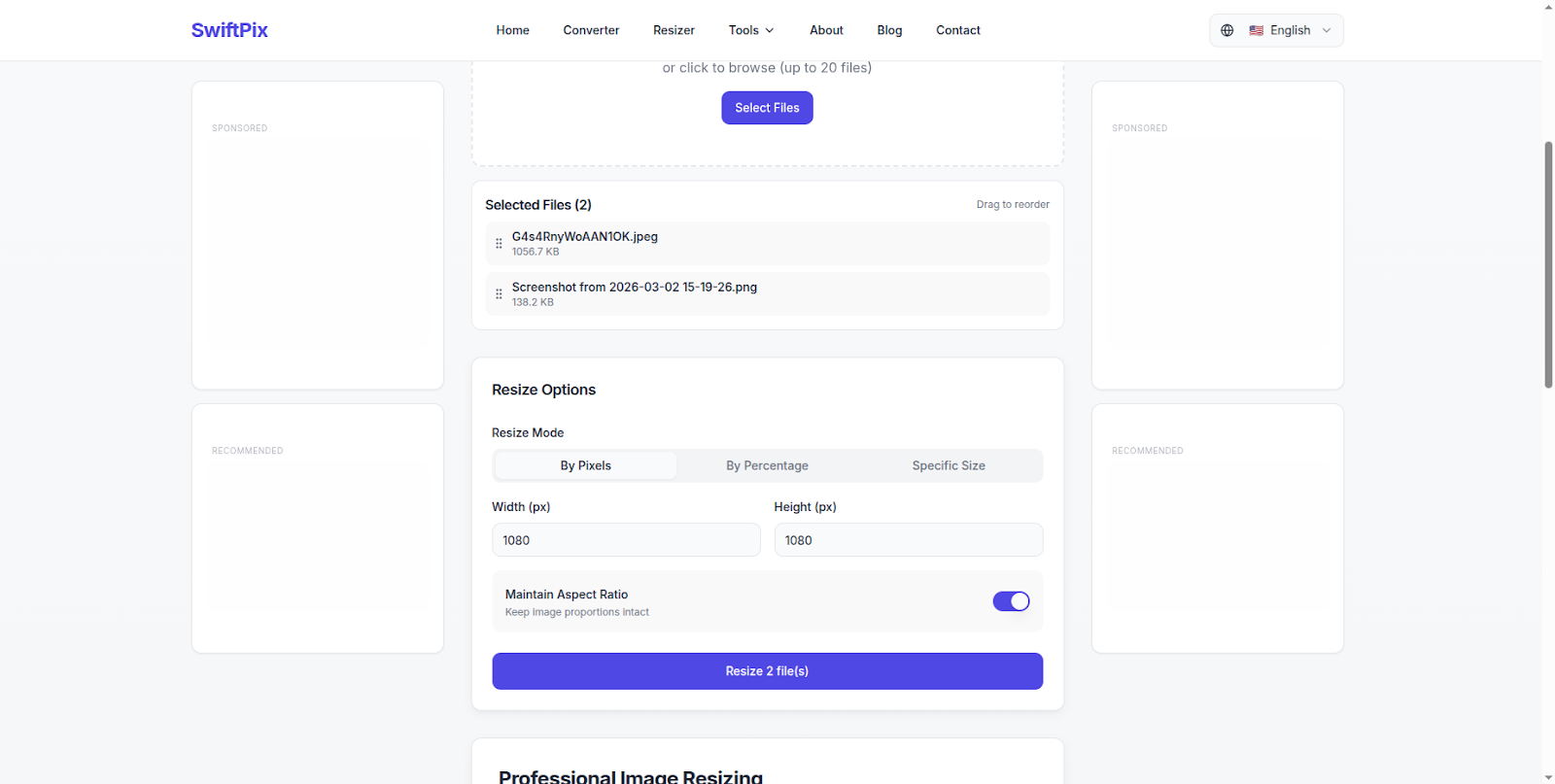
Resize your image to exact Instagram dimensions instantly — download in seconds.
Tips for Better Instagram Images
Always use JPG for photos: JPG files are smaller than PNG at the same visual quality — meaning Instagram's compression algorithm has less work to do and your final image looks sharper on screen. SwiftPix can convert your images to JPG as part of the resizing process.
Keep file size under 8MB: Instagram recommends keeping image files under 8MB. Larger files are compressed more aggressively by Instagram — resulting in lower quality. Use SwiftPix to resize and compress your images before uploading.
Use portrait format for maximum visibility: The 1080 x 1350 pixel portrait format takes up more space in your followers' feeds than square or landscape posts — giving you more screen real estate and typically resulting in higher engagement.
Design Stories with safe zones in mind: Instagram Stories show interface elements (your username, time, stickers) at the top and bottom of the screen. Keep important content — faces, text, key visuals — in the middle 1080 x 1420 pixel zone to avoid being covered by Instagram's UI elements.
Batch resize for consistency: If you are managing a business Instagram account, resize all your images to the same dimensions before your posting session. SwiftPix supports multiple files — saving you significant time.
Frequently Asked Questions
What is the best image size for Instagram posts in 2026?
The best all-round size for Instagram feed posts is 1080 x 1080 pixels (square, 1:1 ratio). However if you want maximum visibility in the feed, use 1080 x 1350 pixels (portrait, 4:5 ratio) — this format takes up more vertical space on your followers' screens.
Why do my Instagram photos look blurry after uploading?
Instagram automatically compresses images that are too large or not the correct dimensions. To prevent blurry uploads, resize your image to the exact recommended dimensions before uploading and keep your file size under 8MB. Using SwiftPix to resize and optimize your image before uploading prevents Instagram from applying heavy compression.
Can I resize images for Instagram without cropping?
Yes. SwiftPix lets you resize to exact dimensions while maintaining your original aspect ratio — adding padding if necessary rather than cropping your image. This means you keep the full photo without losing any part of it.
Is SwiftPix really free?
Yes — completely free. No hidden fees, no premium tiers and no account required. SwiftPix is built and maintained by VelocityAI Solutions as a free tool for everyone.
Does SwiftPix work on mobile?
Yes. SwiftPix is fully responsive and works on any device — desktop, laptop, tablet and smartphone. You can resize images for Instagram directly on your phone before uploading.
What image formats does SwiftPix support?
SwiftPix supports JPG, PNG, WebP, HEIC and GIF — covering virtually every image format you are likely to encounter. You can also convert between formats as part of the resizing process.
Quick Reference — Instagram Image Sizes 2026
Square feed post: 1080 x 1080 px — ratio 1:1
Portrait feed post: 1080 x 1350 px — ratio 4:5 *(recommended)*
Landscape feed post: 1080 x 566 px — ratio 1.91:1
Story: 1080 x 1920 px — ratio 9:16
Reel cover: 1080 x 1920 px — ratio 9:16
Profile picture: 320 x 320 px minimum — displayed as circle
IGTV thumbnail: 420 x 654 px — ratio 1:1.55
Conclusion
Getting your Instagram image sizes right is the simplest way to instantly improve the quality of your content. Correctly sized images look sharper, avoid unwanted cropping and perform better in the feed algorithm.
SwiftPix makes it easy — resize any image to exact Instagram dimensions for free, directly in your browser, with no uploads and no account required. Bookmark it and use it every time before you post.
Looking for more free browser-based tools? Check out how to convert HEIC to JPG for free, how to merge PDFs without uploading, and our free word counter for essays — all built by VelocityAI Solutions.
🚀 Need a Professional Website or Custom Tool for Your Business?
VelocityAI Solutions builds AI-powered websites, mobile apps and business automation tools for businesses in Nairobi and beyond — at startup-friendly prices.
✅ Web Development | ✅ Mobile Apps | ✅ Business Automation | ✅ Cybersecurity
🌐 velocity-ai-solutions.nzuki.com
💬 WhatsApp: +254 735 644 100
📩 info.nzuki@gmail.com


0 Comments