

You right-click an image on a website to save it — and it downloads as a .webp file. You try to open it in Windows Photo Viewer, your email client or your design app and nothing happens. You try to attach it to a WhatsApp message and the quality looks wrong. You try to print it and the printer does not recognize the format.
This is the WebP compatibility problem — and it frustrates millions of people every day in 2026. WebP is an excellent format for websites but it is not universally supported across every app, device and platform. The fastest fix is converting your WebP file to JPG — the most universally compatible image format in the world.
In this guide we will explain exactly why WebP files cause compatibility problems and how to convert any WebP to JPG for free — instantly in your browser, with no upload and no signup — using SwiftPix.
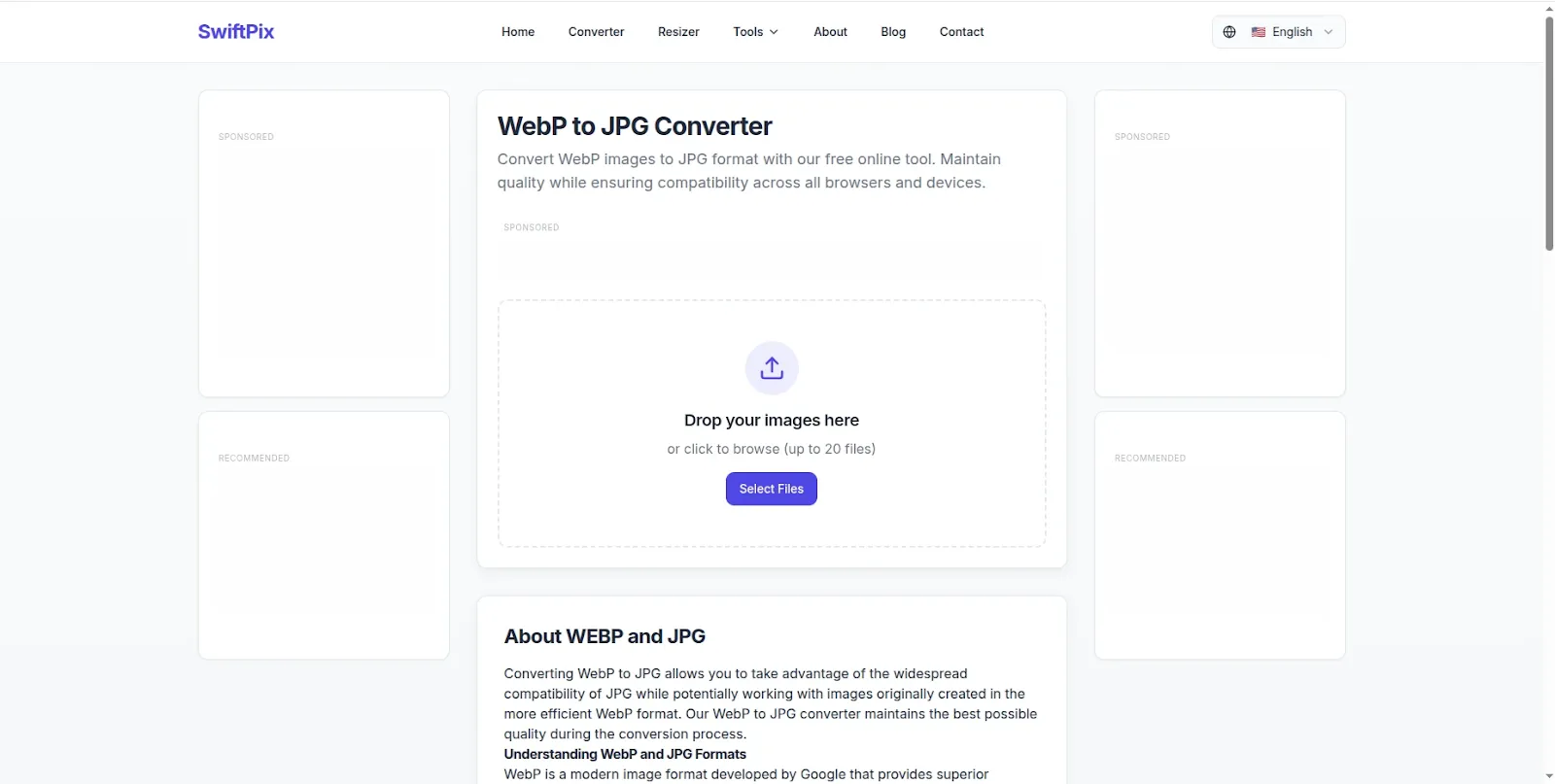
SwiftPix — Convert WebP to JPG free in your browser. No uploads, no signup required.
Why WebP Files Do Not Open on Some Devices and Apps
WebP was developed by Google in 2010 and has become the dominant image format for websites in 2026 — used by Google, Facebook, YouTube, Wikipedia and virtually every major platform to serve images faster with smaller file sizes.
However despite its widespread use on the web, WebP still faces compatibility gaps in offline contexts:
Older Windows versions: Windows 10 before the May 2019 update does not natively support WebP in Windows Photo Viewer or File Explorer thumbnails. Users on older Windows builds see a blank thumbnail or an error when trying to open WebP files.
Email clients: Many email clients — including older versions of Outlook — do not render WebP images inline. Recipients see a broken image placeholder instead of the actual photo. Converting to JPG before attaching ensures your image displays correctly for every recipient.
Print services: Professional printing workflows — including print shops, photo printing services and desktop printers — typically work with JPG, TIFF or PNG formats. Submitting a WebP file often results in an error or unexpected output.
Image editing software: Older versions of Photoshop, Lightroom, GIMP and other editing tools do not support WebP natively. If you need to edit a WebP image in a tool that does not recognize the format, converting to JPG first is the quickest solution.
Social media and messaging apps: While major platforms support WebP for web display, some apps — particularly older versions — may not handle WebP uploads correctly, resulting in quality loss or format errors on upload.
How to Convert WebP to JPG for Free Using SwiftPix
SwiftPix is a free browser-based image converter that converts WebP to JPG — and many other format combinations — entirely in your browser with no file uploads, no account and no fees. Here is exactly how to use it:
Step 1: Open SwiftPix in Your Browser
Go to swiftpix.nzuki.com in any modern browser — Chrome, Edge, Firefox or Brave on desktop or mobile. No account, no installation and no signup required.
Step 2: Load Your WebP File
Click the upload area or drag and drop your WebP file onto the page. SwiftPix supports WebP, JPG, PNG, HEIC and GIF as both input and output formats. Your file loads directly into your browser memory — it never leaves your device or gets transmitted to any server.
Step 3: Select JPG as Your Output Format
From the format dropdown, select JPG as your target format. You can also adjust the quality setting — for most uses a quality of 85% to 95% gives excellent visual results while keeping file sizes manageable.
Step 4: Convert and Download
Click Convert — the operation completes instantly in your browser. Download your JPG file and it is immediately ready to open on any device, attach to any email, print at any print shop and use in any image editing software.
No upload. No signup. No privacy risk. Completely free.
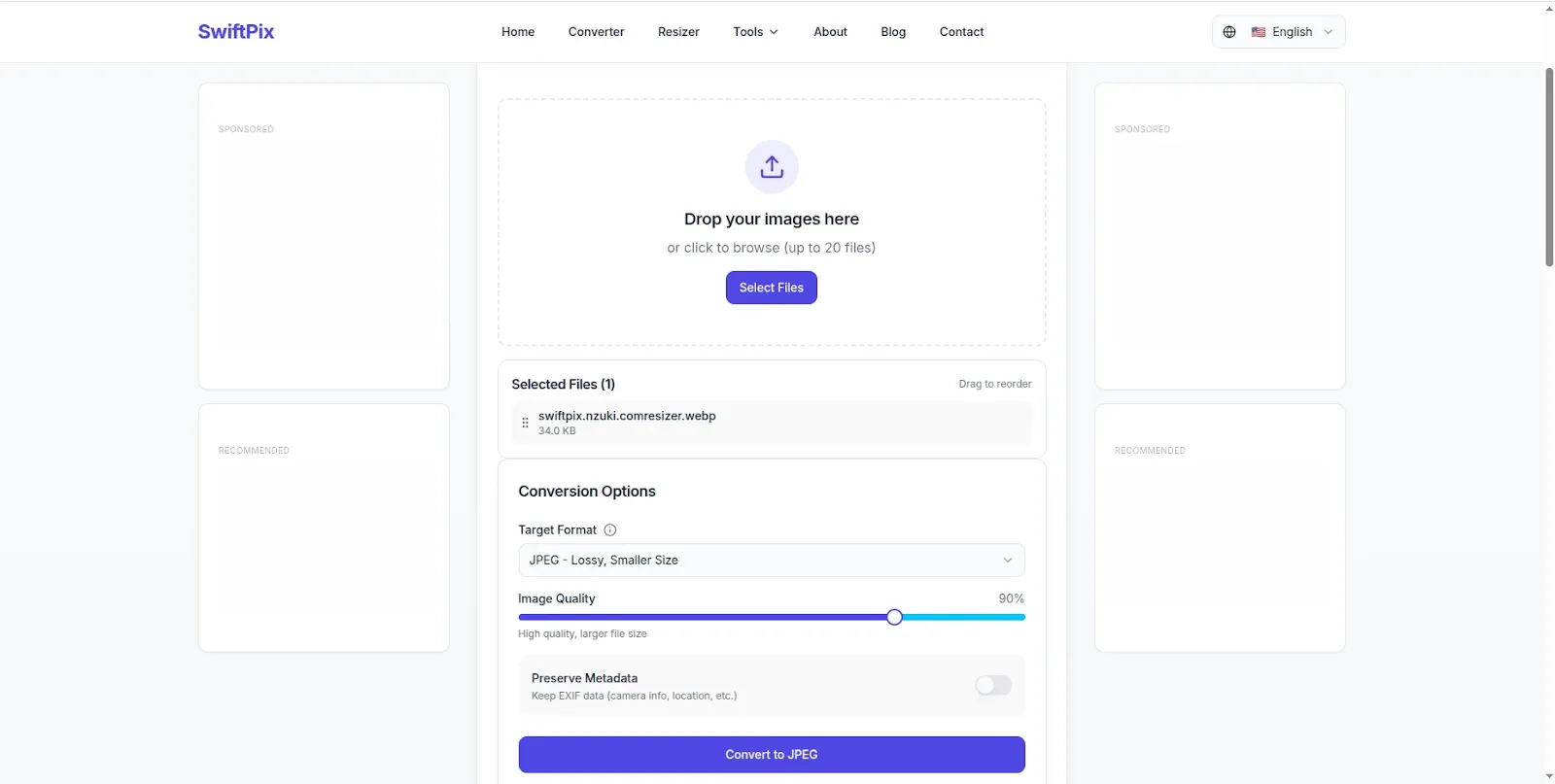
WebP converted to JPG instantly — compatible with every device, app and platform.
Why WebP Files Are Everywhere in 2026
If you are wondering why you are suddenly seeing more WebP files when saving images from websites, here is the reason: Google made WebP the recommended image format for the web and baked it into their PageSpeed and Core Web Vitals ranking signals.
When Google tells website owners that using WebP will improve their search rankings — and it genuinely does, because WebP images are 25% to 35% smaller than equivalent JPGs — every website owner has a strong incentive to switch. Major platforms followed quickly — Google Images, Facebook, Instagram, Wikipedia and most large content sites now serve WebP by default.
This is great for website speed and SEO. But it creates a friction point for users who download images for offline use — editing, printing, sharing via email or using in apps that have not yet added WebP support.
Converting WebP to JPG bridges this gap — giving you the universal compatibility of JPG for offline use while websites continue to benefit from WebP's speed advantages.
WebP vs JPG — Which Is Better?
The answer depends entirely on your use case:
WebP is better for: Serving images on websites and web apps. Reducing page load times and improving Core Web Vitals scores. Any context where the image will be viewed in a modern web browser. Storing web assets where file size matters.
JPG is better for: Universal compatibility across all devices, apps and platforms. Email attachments. Printing at professional print services. Sharing via messaging apps and social media uploads. Editing in image software that does not yet support WebP. Any offline use where maximum compatibility is required.
In short — WebP is the web delivery format of 2026. JPG remains the universal compatibility format for everything else.
Does Converting WebP to JPG Reduce Quality?
Since both WebP and JPG use lossy compression, converting between them involves a minor quality tradeoff. Here is the honest answer:
If your WebP file uses lossy compression — which most web-served WebP images do — converting to JPG at a high quality setting (85% to 95%) produces a result that is visually identical to the original in normal viewing conditions. The quality difference is invisible to the human eye at these settings.
If your WebP file uses lossless compression, converting to JPG will involve some quality reduction since JPG does not support lossless compression. In this case converting to PNG instead would preserve quality better — SwiftPix supports WebP to PNG conversion as well.
For the vast majority of everyday use cases — saving website images, sharing photos, printing — converting WebP to JPG at high quality gives you a perfectly usable result.
Frequently Asked Questions
Is converting WebP to JPG free with SwiftPix?
Yes — completely free. No hidden fees, no daily limits and no account required. SwiftPix is built and maintained by VelocityAI Solutions as a free tool for everyone.
Why can't I open a WebP file on my computer?
WebP files may not open on older operating systems or applications that have not added WebP support. The quickest fix is converting your WebP to JPG using SwiftPix — JPG opens on every device and in every app without any compatibility issues.
Can I convert multiple WebP files to JPG at once?
Yes. SwiftPix supports batch conversion — drag and drop multiple WebP files simultaneously and convert them all to JPG in a single operation. This is useful when you have downloaded several images from a website and need to convert them all.
Does SwiftPix upload my WebP files to a server?
No — SwiftPix processes all conversions locally in your browser. Your WebP files never leave your device. This is a significant privacy advantage over converters that upload your images to remote servers.
Can I convert WebP to PNG instead of JPG?
Yes. SwiftPix supports WebP to PNG conversion as well — useful when you need lossless quality or transparent background support. Simply select PNG as your output format instead of JPG.
Does SwiftPix work on mobile for WebP to JPG conversion?
Yes. SwiftPix works fully on Android and iOS browsers without any app installation. You can convert WebP files to JPG directly on your smartphone.
Conclusion
WebP is the future of web images — but JPG remains the present reality for offline compatibility. When you need to open a WebP file in an app that does not support it, print it, email it or edit it in older software — converting to JPG is the fastest and most reliable solution.
SwiftPix makes it completely free — convert any WebP to JPG instantly in your browser with no uploads, no account and no privacy risk. Your files stay on your device throughout the entire process.
Go to swiftpix.nzuki.com and convert your WebP file to JPG in under thirty seconds.
Also check our other free browser-based image tools: convert JPG to PNG free, convert PNG to WebP free, convert HEIC to JPG on Windows and compress images to 50KB.
🚀 Need a Professional Website or Custom Tool for Your Business?
VelocityAI Solutions builds AI-powered websites, mobile apps and business automation tools for businesses in Nairobi and beyond — at startup-friendly prices.
✅ Web Development | ✅ Mobile Apps | ✅ Business Automation | ✅ Cybersecurity
🌐 velocity-ai-solutions.nzuki.com
💬 WhatsApp: +254 735 644 100
📩 info.nzuki@gmail.com


0 Comments