

You have a PDF you need to edit — a contract, a report, an application form — and you need it in Word format. You search online for a free PDF to Word converter and find dozens of tools all making the same bold promise: "100% accurate conversion. Formatting preserved. Free forever."
Here is the honest truth: no free PDF to Word converter is perfect. Not ours. Not anyone's.
PDF and Word are fundamentally different file formats. PDF is designed for fixed, print-ready layouts. Word is designed for flexible, editable documents. Converting between them is genuinely difficult — and the more complex your PDF layout, the more imperfect the result will be.
In this guide we will be upfront about what free PDF to Word conversion can and cannot do, show you exactly how to use PDFStream to convert your PDFs for free in your browser, and give you practical tips to get the best possible result.
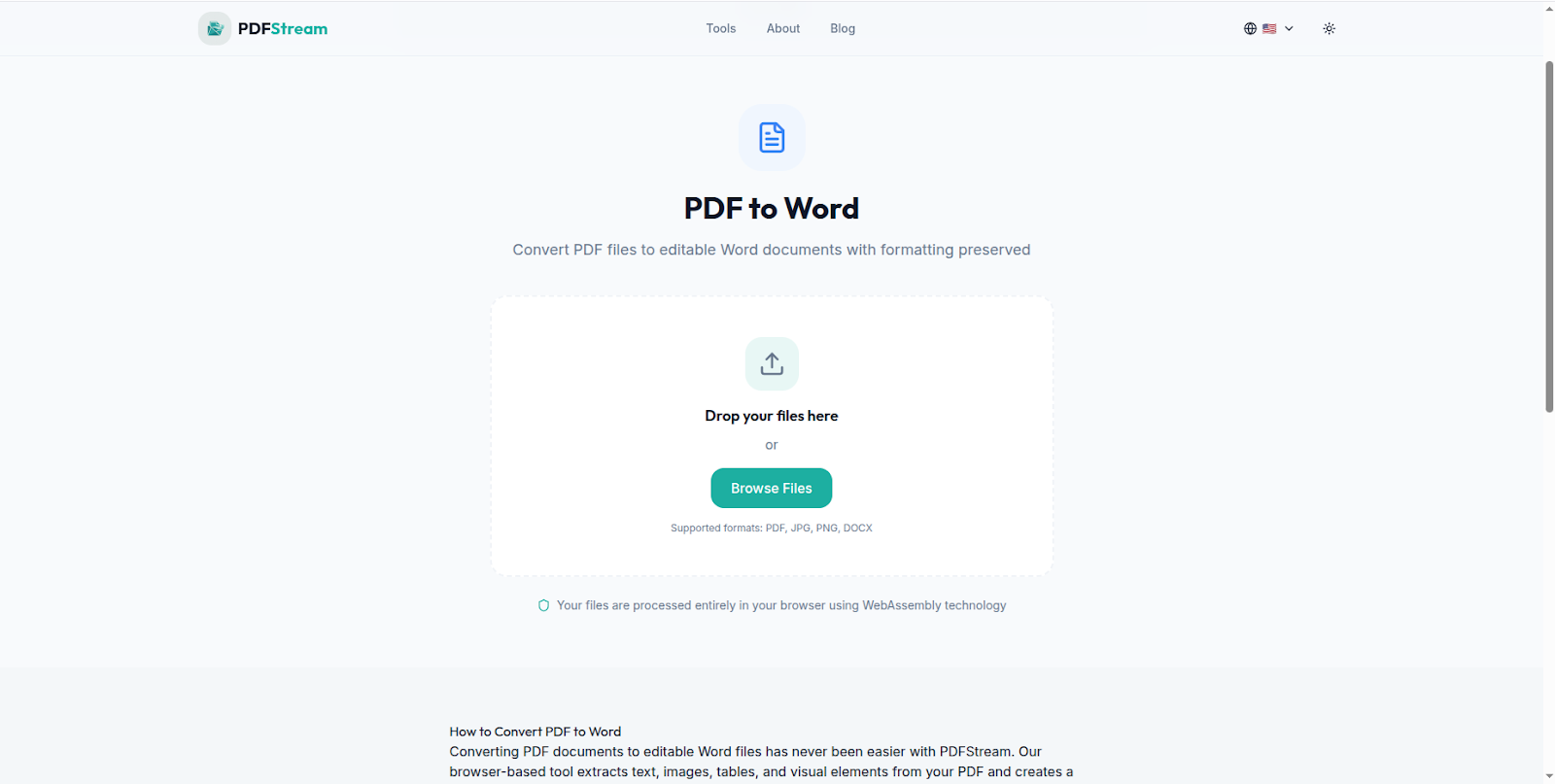
PDFStream — Free browser-based PDF to Word converter. No uploads, no signup.
Why PDF to Word Conversion Is Never Perfect
To understand why formatting breaks during conversion, you need to understand how PDFs work.
A PDF file does not store text the way a Word document does. Instead it stores precise instructions for rendering each element — every character, image, table cell and line — at an exact position on the page. It is essentially a snapshot of a printed page, not an editable document.
When a converter tries to turn that snapshot back into an editable Word document, it has to make hundreds of guesses: Where does this paragraph end and the next begin? Is this a table or just text with spaces? Is this a heading or bold body text? What font was used and is it available on this computer?
The simpler your PDF, the more accurate these guesses will be. The more complex — with multi-column layouts, custom fonts, nested tables, merged cells, embedded graphics and watermarks — the more the converter will struggle.
This is true for every free converter available online in 2026 — including PDFStream. We would rather be honest with you than make promises we cannot keep.
What PDFStream Does Well — and Where It Has Limits
PDFStream is a free, browser-based PDF tool that converts PDF to Word entirely in your browser — meaning your document never leaves your device. Here is an honest breakdown of where it performs well and where it has limitations:
PDFStream converts well:
Simple text-based PDFs with standard fonts and basic formatting convert cleanly. Reports, articles, essays, letters, simple contracts and single-column documents with minimal design elements come out well — preserving paragraphs, headings, bold and italic text accurately.
PDFStream has limitations with:
Complex multi-column layouts, heavily designed documents with custom fonts, PDFs with large tables containing merged cells, documents with text wrapped around images, and scanned PDFs (which are images, not text) will show formatting issues. Tables in particular are challenging — column widths, merged cells and borders may not translate perfectly to Word format.
This is not unique to PDFStream — it is a fundamental challenge of the PDF-to-Word conversion process that affects every free tool available. The difference with PDFStream is that your document stays completely private on your device while you try.
How to Convert PDF to Word for Free Using PDFStream
Here is how to convert your PDF to Word using PDFStream:
Step 1: Open PDFStream in Your Browser
Go to pdfstream.nzuki.com in any modern browser — Chrome, Edge, Firefox or Brave. No account or installation required.
Step 2: Select Your PDF
Click the upload area or drag and drop your PDF file onto the page. Your file loads directly into your browser memory — it never leaves your device or gets sent to any server.
Step 3: Choose Word as Your Output Format
Select Word (DOCX) as your target format. PDFStream will process your document immediately inside your browser.
Step 4: Download and Review
Click Download to save your Word document. Open it in Microsoft Word or LibreOffice and review the formatting. For simple documents you will likely find it very usable with minimal cleanup needed. For complex documents you may need to spend a few minutes adjusting spacing, fonts and table layouts.
No account. No waiting. No upload. No privacy risk. And completely free.
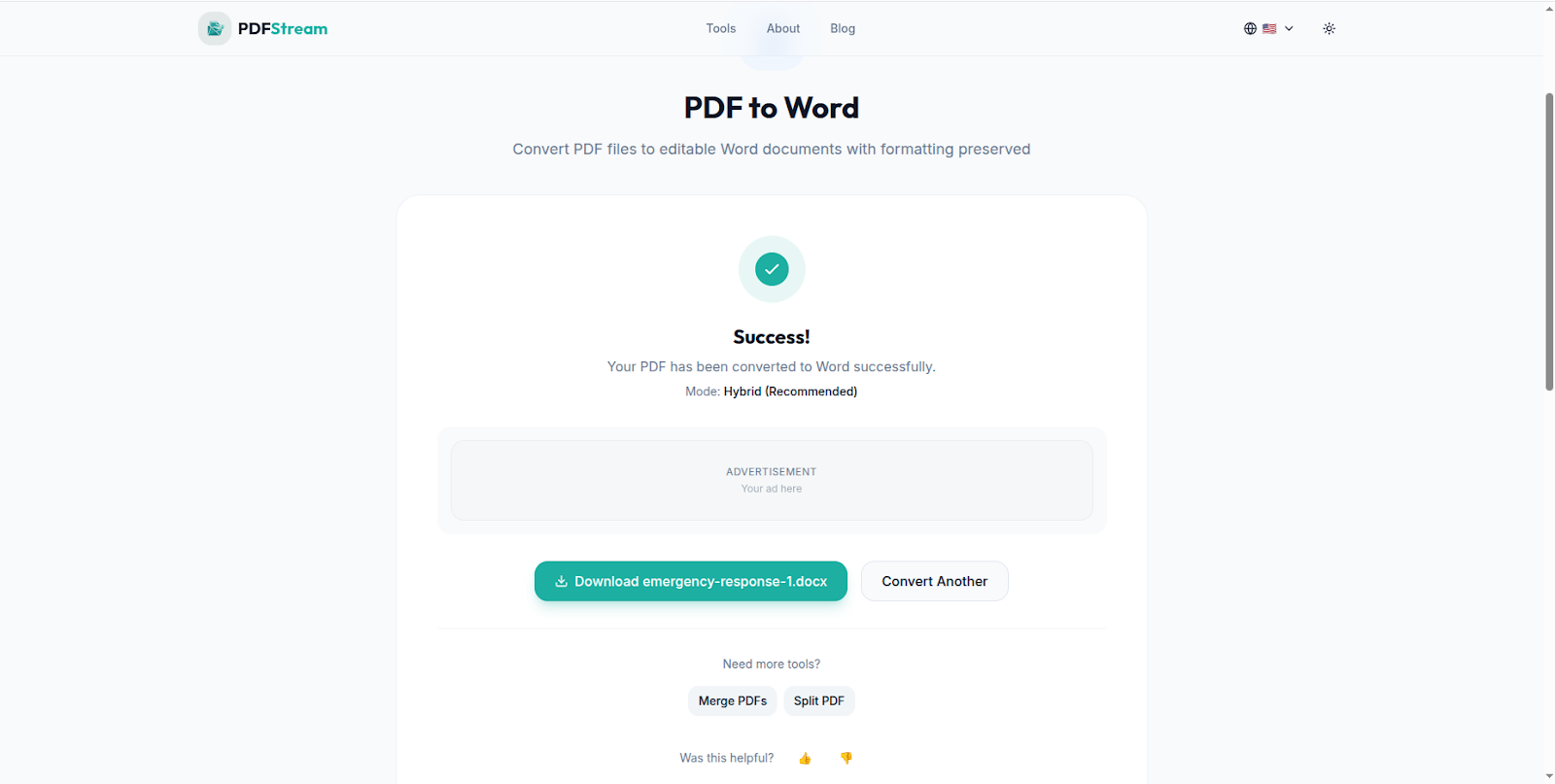
PDFStream converts your PDF to Word instantly — free, private, no upload needed.
Tips to Get the Best Result From Free PDF to Word Conversion
Start with the simplest version of your PDF: If you have access to the original document that was used to create the PDF, export a cleaner version first — remove unnecessary formatting, flatten tables, and reduce design complexity before converting.
Check the font availability: If your PDF uses uncommon or custom fonts, the converter may substitute them with a system font that changes spacing and layout. After conversion, check that all text appears in the correct font and adjust manually if needed.
Fix tables manually: Tables are the most common casualty of PDF to Word conversion. After converting, click into each table and use Word's table tools to fix column widths, remove unwanted merged cells and restore borders. This usually takes just a few minutes for simple tables.
Use Find and Replace for spacing issues: Free converters sometimes insert extra line breaks or spaces between paragraphs. In Word, use Find and Replace (Ctrl+H) to clean up double line breaks — search for `^p^p` and replace with `^p` to remove extra blank lines quickly.
Accept the tradeoff honestly: A free browser-based converter that protects your privacy and costs nothing will not match the output of a paid tool like Adobe Acrobat. But for a quick conversion of a simple document — or when you just need to extract and edit the text content — PDFStream delivers solid value at zero cost.
When Should You Use a Paid PDF to Word Converter?
PDFStream is the right choice when you need a quick, private, free conversion and can accept some manual cleanup afterward. However there are situations where a paid tool is worth the investment:
Use a paid tool when: You are converting complex legal or financial documents where formatting must be pixel-perfect. You are processing large volumes of PDFs regularly as part of a business workflow. Your PDF contains scanned pages that require OCR (optical character recognition) to extract text. You need guaranteed output quality with no manual cleanup.
Use PDFStream when: You need a quick free conversion with no signup and no upload. Your PDF is a simple text-based document. You are working with sensitive documents that you do not want to upload to any server. You want to try conversion before committing to a paid tool.
Frequently Asked Questions
Is PDFStream really free for PDF to Word conversion?
Yes — completely free. No hidden fees, no daily limits, no account required. PDFStream is built and maintained by VelocityAI Solutions as a free tool for everyone.
Will my PDF formatting be preserved perfectly?
Honestly — it depends on your PDF. Simple text-based documents convert well. Complex layouts with custom tables, multi-column designs and custom fonts will show some formatting differences. PDFStream gives you a solid free conversion — but we will not pretend it is perfect, because no free tool is.
Is it safe to convert sensitive PDFs using PDFStream?
Yes — PDFStream is one of the safest options for sensitive documents because everything is processed locally in your browser. Your file never leaves your device. No server ever sees your document content — making it ideal for confidential contracts, financial documents and personal files.
Can PDFStream convert scanned PDFs to Word?
Scanned PDFs are images — not text — and require OCR (Optical Character Recognition) technology to extract editable text. This is a limitation of browser-based free tools including PDFStream. For scanned document conversion, a dedicated OCR tool or paid service is recommended.
What other PDF tools does PDFStream offer?
Beyond PDF to Word conversion, PDFStream lets you merge PDFs, split PDFs, compress PDFs and remove pages — all for free, all in your browser with no uploads required.
Does PDFStream work on mobile?
Yes. PDFStream works on any modern browser on desktop, laptop, tablet and smartphone — Android and iOS included — with no app installation required.
Conclusion — Honest Value at Zero Cost
Free PDF to Word conversion is genuinely useful — but it comes with honest limitations. Complex layouts, custom fonts and heavily designed documents will always require some manual cleanup after conversion, regardless of which free tool you use.
PDFStream gives you a free, private, browser-based conversion that works well for simple documents — with the added advantage that your files never leave your device. For sensitive documents especially, that privacy guarantee is worth more than a slightly cleaner output from a tool that uploads your files to a remote server.
Try it free at pdfstream.nzuki.com — convert your PDF, see the result, and decide if it meets your needs. No signup, no upload, no cost.
Also check our other free browser-based tools: compress images to 50KB, resize images for Instagram, convert HEIC to JPG on Windows and our free word counter for essays.
🚀 Need a Professional Website or Custom Tool for Your Business?
VelocityAI Solutions builds AI-powered websites, mobile apps and business automation tools for businesses in Nairobi and beyond — at startup-friendly prices.
✅ Web Development | ✅ Mobile Apps | ✅ Business Automation | ✅ Cybersecurity
🌐 velocity-ai-solutions.nzuki.com
💬 WhatsApp: +254 735 644 100
📩 info.nzuki@gmail.com


0 Comments