

If your website uses PNG images, it is almost certainly loading slower than it should. PNG is a great format for image quality — but it produces large file sizes that slow down page loading, hurt your Core Web Vitals scores and ultimately drag down your Google search rankings.
The solution is WebP — Google's modern image format that delivers the same visual quality as PNG at up to 26% smaller file sizes. Switching your website images from PNG to WebP is one of the fastest and most impactful things you can do to improve page speed and SEO in 2026.
In this guide we will explain exactly what WebP is, why it matters for your website, and how to convert PNG to WebP for free — directly in your browser with no uploads and no signup — using SwiftPix.
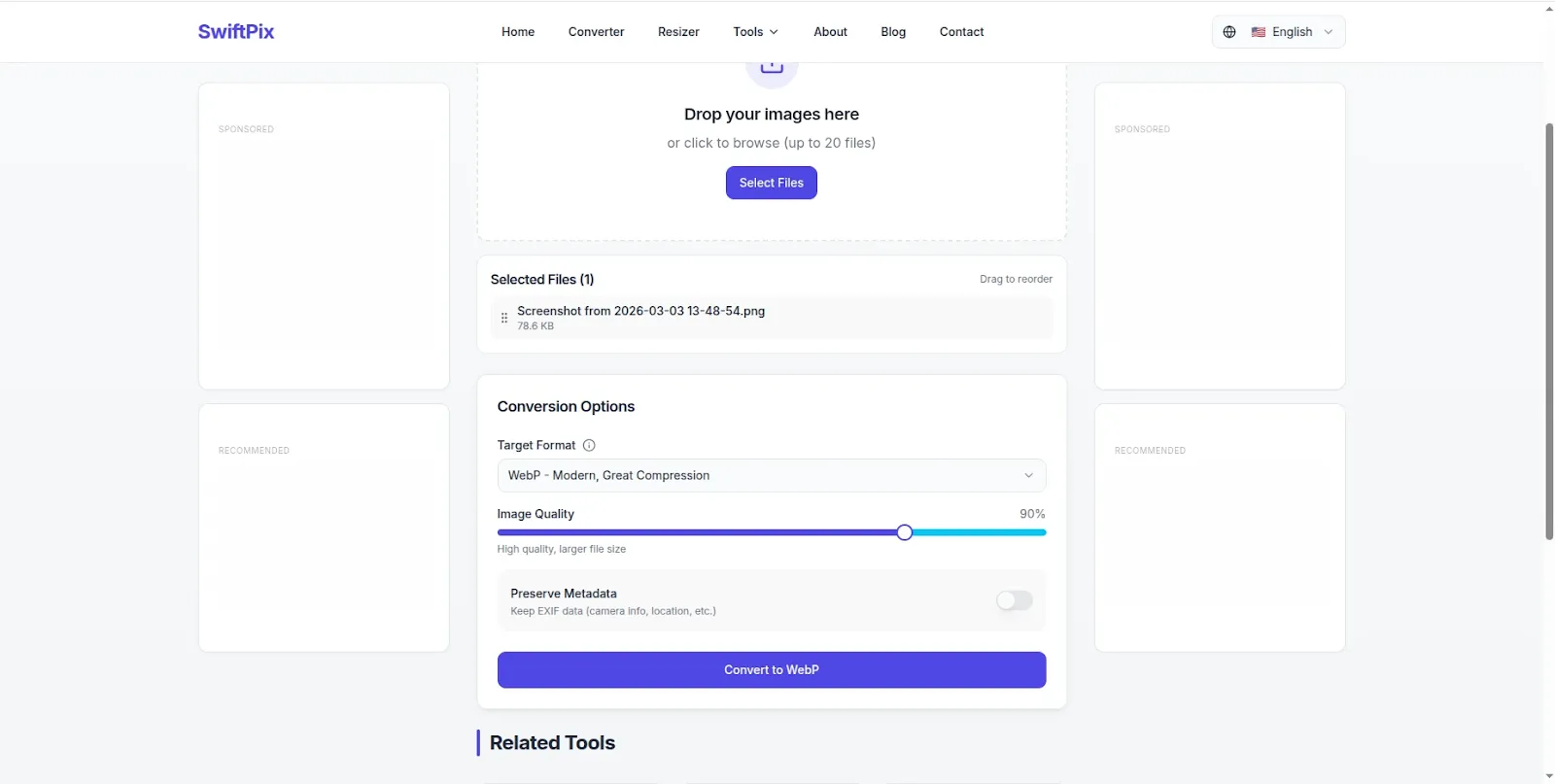
SwiftPix — Convert PNG to WebP free in your browser. No uploads, no signup required.
What Is WebP and Why Is It Better Than PNG?
WebP is an image format developed by Google specifically for the web. It uses advanced compression technology to produce images that are significantly smaller in file size than PNG or JPEG — while maintaining comparable or better visual quality.
Here is how WebP compares to PNG:
File size: WebP images are typically 25% to 35% smaller than equivalent PNG images at the same visual quality. For a website with dozens or hundreds of images, this adds up to a massive reduction in total page weight.
Transparency support: Like PNG, WebP fully supports transparent backgrounds — making it suitable for logos, icons and product images that require transparency. This is a key advantage over JPEG, which does not support transparency at all.
Lossless and lossy compression: WebP supports both lossless compression (like PNG — no quality reduction) and lossy compression (like JPEG — smaller size with minor quality tradeoff). This flexibility makes it useful for virtually every type of web image.
Browser support: As of 2026, WebP is supported by over 97% of browsers worldwide — including Chrome, Firefox, Safari, Edge and Opera on both desktop and mobile. Browser compatibility is no longer a concern for WebP.
SEO impact: Google's Core Web Vitals assessment — which directly influences search rankings — measures page loading speed. Smaller WebP images load faster, improving your Largest Contentful Paint (LCP) score and boosting your overall SEO performance.
Who Should Convert PNG Images to WebP?
Converting to WebP is particularly valuable for:
Website owners and bloggers: Every image on your website that loads faster improves user experience and search rankings. Blog post images, hero images, banners and background images are all strong candidates for WebP conversion.
E-commerce businesses: Product images are the most viewed images on any e-commerce site. Converting product photos from PNG to WebP can dramatically reduce page load times — directly improving conversion rates, since faster pages convert significantly better than slow ones.
Web developers and designers: WebP has become the standard image format recommendation for modern web development. Google Lighthouse, PageSpeed Insights and GTmetrix all flag PNG and JPEG images as optimization opportunities and specifically recommend WebP as the replacement format.
App developers: Mobile apps benefit from smaller image assets — reducing app size, speeding up content loading and reducing data usage for users on mobile connections.
How to Convert PNG to WebP Online Free Using SwiftPix
SwiftPix is a free browser-based image converter that converts PNG to WebP entirely in your browser — with no file uploads, no account and no fees. Here is how to use it:
Step 1: Open SwiftPix in Your Browser
Go to swiftpix.nzuki.com in any modern browser — Chrome, Edge, Firefox or Brave on desktop or mobile. No account or installation required.
Step 2: Upload Your PNG File
Click the upload area or drag and drop your PNG file onto the page. SwiftPix supports PNG, JPG, HEIC, GIF and WebP formats. Your file loads directly into your browser memory — it never leaves your device or gets sent to any server.
Step 3: Select WebP as Your Output Format
From the format dropdown, select WebP as your target format. You can also adjust the quality setting — for most web use cases a quality setting of 80% to 85% gives excellent visual results at maximum file size savings.
Step 4: Convert and Download
Click Convert — the operation happens instantly in your browser. Download your WebP file and it is ready to use on your website immediately. Compare the file size to your original PNG — you will typically see a 25% to 35% reduction.
No account. No upload. No privacy risk. Completely free.
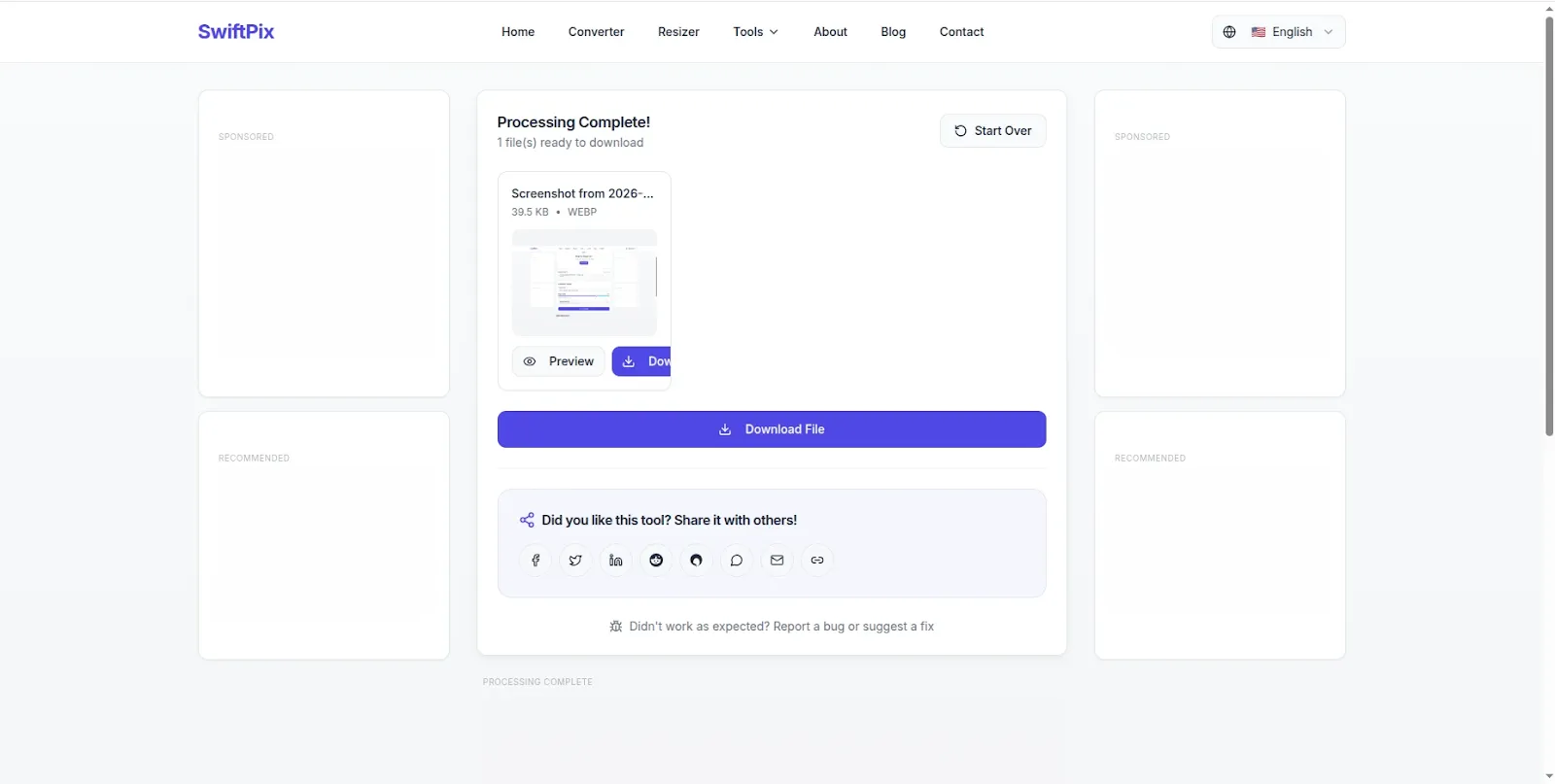
PNG converted to WebP instantly — smaller file size, same visual quality.
Tips for Getting the Best Results From PNG to WebP Conversion
Use lossless WebP for logos and icons: For images with sharp edges, text or flat colors — like logos, icons and UI elements — use lossless WebP compression. This gives you the same pixel-perfect quality as PNG but in a smaller file.
Use lossy WebP for photos and complex images: For photographs and complex images with gradients and natural textures, lossy WebP at 80% to 85% quality produces excellent visual results at 30% to 40% smaller file sizes than PNG. The quality reduction is invisible to the human eye at these settings.
Convert in batches: SwiftPix supports batch conversion — drag and drop multiple PNG files at once and convert them all to WebP in a single operation. This is particularly useful when optimizing an entire website's image library.
Keep your original PNG files: Always keep your original PNG source files. WebP is the delivery format for web use — but you may need the original PNG for print work, further editing or platforms that do not yet support WebP.
Update your website's image references: After converting, remember to update your HTML or CMS to reference the new WebP files. In WordPress, plugins like ShortPixel or WebP Converter for Media can automate this process. For hand-coded websites, simply replace the PNG file references in your HTML with the new WebP filenames.
PNG vs WebP vs JPEG — Which Format Should You Use?
Use PNG when: You need lossless quality for editing source files. You are working with screenshots, diagrams or images with text. You need transparency and are not publishing to the web.
Use WebP when: You are publishing images on a website or web app. You want the best balance of quality and file size. You need transparency support with smaller file sizes than PNG. You want to improve your Core Web Vitals and SEO scores.
Use JPEG when: You are sharing photos via email or messaging apps where WebP is not supported. You need maximum compatibility with older devices or platforms. Note that JPEG does not support transparency — use WebP instead for transparent images.
Frequently Asked Questions
Is WebP better than PNG for websites?
Yes — for web publishing WebP is better than PNG in almost every case. WebP produces smaller file sizes (25% to 35% smaller) at equivalent visual quality, supports transparency, and is supported by over 97% of browsers in 2026. The smaller file sizes improve page loading speed, Core Web Vitals scores and ultimately search rankings.
Does converting PNG to WebP reduce image quality?
With lossless WebP compression — no. Lossless WebP produces identical visual quality to PNG at smaller file sizes. With lossy WebP at 80% to 85% quality, there is a minimal quality reduction that is invisible in normal viewing conditions. SwiftPix lets you choose between lossless and lossy compression.
Is SwiftPix free for PNG to WebP conversion?
Yes — completely free. No hidden fees, no daily limits, no account required. SwiftPix is built and maintained by VelocityAI Solutions as a free tool for everyone.
Can I convert multiple PNG files to WebP at once?
Yes. SwiftPix supports batch conversion — drag and drop multiple PNG files simultaneously and convert them all to WebP in one operation. This is ideal for optimizing all images on a website in a single session.
Does SwiftPix upload my PNG files to a server?
No — SwiftPix processes all conversions locally in your browser. Your PNG files never leave your device. This is a significant privacy advantage over online converters that upload your images to remote servers.
Will all browsers display WebP images correctly?
Yes. As of 2026, WebP is supported by Chrome, Firefox, Safari, Edge and Opera — covering over 97% of all browser users worldwide. WebP compatibility is no longer a concern for modern web development.
Conclusion
Converting PNG images to WebP is one of the simplest and most effective ways to speed up your website, improve your Core Web Vitals scores and boost your SEO rankings in 2026. Smaller images mean faster pages — and faster pages rank higher, convert better and retain visitors longer.
SwiftPix makes the conversion completely free — convert any PNG to WebP instantly in your browser with no uploads, no account and no privacy risk. Batch convert your entire image library in minutes.
Go to swiftpix.nzuki.com and start converting your PNG images to WebP today.
Also check our other free browser-based tools: compress images to 50KB, resize images for Instagram, convert HEIC to JPG on Windows, convert PDF to Word free and our free word counter for essays.
🚀 Need a Professional Website or Custom Tool for Your Business?
VelocityAI Solutions builds AI-powered websites, mobile apps and business automation tools for businesses in Nairobi and beyond — at startup-friendly prices.
✅ Web Development | ✅ Mobile Apps | ✅ Business Automation | ✅ Cybersecurity
🌐 velocity-ai-solutions.nzuki.com
💬 WhatsApp: +254 735 644 100
📩 info.nzuki@gmail.com


0 Comments